The information in this article is applicable only to devices with macOS and Bootstrapper 4.4.
The command lines and scripts in this article are just an example. When file names are specified, make sure you modify them accordingly before running the command/script.
This guide does not cover how to create a .PKG file.
Prerequisites
Create an Entra ID identity source. For more information, see Microsoft Entra ID.
Application Workspace configurations
Create a self-signed certificate
- In Application Workspace, navigate to Manage > System > Device Registrations.
- Click on
 Create in the table toolbar.
 - In the Create device registration dialog box that opens, configure the following:
- In Type, select Certificate and click Next.
- In Overview, write a name, for example Device enrollment and click Next.
- In Settings, check the Use a self signed certificate for the device registration option. This will create a self-signed certificate for you. Click Next.
- In Self signed, write a common name and change the days valid and key size if needed. Click Next.
- In Summary, leave the Modify device registration after creation option selected. Click Finish.
- In the newly created certificate that opens, navigate to the Settings screen and click Download for agent registration. You need to save this file, as you will use it when creating the .PKG file that you will later upload to Intune
If you are self‑hosting Application Workspace, client devices must trust the Application Workspace server. This typically requires deploying one or more certificates to your devices.
If your server uses a certificate issued by a public Certificate Authority (CA), no additional configuration is required.
If you are using an internal CA or the self‑signed certificate generated during the Application Workspace installation, you must export the required certificates and deploy them to client devices. This is usually done through Microsoft Intune or your preferred MDM solution.
Depending on your setup, you may need to deploy:
The internal CA root certificate
The Application Workspace self‑signed certificate
Ensure these certificates are installed in the Trusted Root Certification Authorities store on the client devices to establish a valid trust chain between the clients and the Application Workspace server.
You can create one or more Intune certificate profiles as needed, based on your environment and configuration. For guidance, see:
Microsoft documentation.
Create a deployment
- In Application Workspace, navigate to Manage > Automation > Deployments.
- Click on Create in the table toolbar.
- In the Create deployment dialog box that opens, enter the desired name and description.
- In Name, write MS Intune Deployment. Click Next and then Finish.
- In Summary, leave the Modify deployment after creation selected.
4. In the detailed view of the new deployment, configure the following:
- In Packages, use the lookup field or the browse button
 to select the packages you want to deploy. Be sure to specify the Install action.
 - In Assignments, use the lookup field or the browse button and select an existing device collection for a targeted deployment or the All devices predefined collection to deploy to all devices.
Build custom .PKG
Create a folder where you will store all files that will be included in the .PKG file, namely:
- The agent bootstrapper for macOS from our downloads page https://download.liquit.com
- (Optional) The certificate is for certificate-based device registration.
- (Optional) If there are specific settings that cannot be handled by the bootstrapper, you should create an Agent.json file and add it to this folder. If you don't, the bootstrapper creates one for you during deployment. The objects that you can configure in the command line are Zone, Registration and Deployments (except for cancel, trigger, zoneTimeout). You can specify command lines for the bootstrapper in Intune, as explained later in this article.
Make sure the files in this folder have the right permissions and attributes. Use the terminal and navigate to this folder, and make sure the bootstrapper and post-install script files are executable using the chmod +x command.
You can create the .PKG file using tools like Package Builder from Araelium https://www.araelium.com/packagebuilder
There is no need to include a post-install script. The Bootstrapper handles the log file and launch agent, including all the required post-install actions. On macOS, your only action is to run the Bootstrapper executable with the correct command-line arguments.
Agent.json file example
Make sure that the Agent.json is formatted as UTF-8.
{
 "zone": "https://fqdn.yoursiteserver.com",
 "promptZone": "Disabled",
 "registration": { "type": "Certificate" },
 "deployment": {
 "enabled": true,
 "start": false,
 "context": "device",
 "cancel": false,
 "triggers": false,
 "autoStart": {
 "enabled": true,
 "deployment": "Your Deployment Name",
 "timer": 0
 }
 },
 "log": { "level": "Info" },
 "icon": { "enabled": true, "exit": true, "timeout": 30 },
 "launcher": {
 "enabled": true,
 "state": "Default",
 "start": "Auto",
 "tiles": true,
 "minimal": false,
 "contextMenu": true,
 "sideMenu": "Tags",
 "close": true
 },
 "restrictZones": true,
 "trustedZones": ["FQDN.yoursiteserver.com"]
}
Microsoft Intune configurations
Deploying the Liquit Root CA Certificate via Microsoft Intune
- Download the Liquit Root CA certificate from our download page . If the Application Workspace Universal Agent is already installed, you can find the Liquit Root CA certificate on macOS at
/Applications/Liquit/Contents/Resources, named Agent.pfx or download it from our download page . This certificate is part of the self-signed certificate chain and therefore needs to be trusted as well. - Go to Microsoft Intune admin center.
- Select Devices > Platform > macOS > Configuration > Policies > + Create > +New policy.
- In the Create a Profile type page that opens, under Profile type, select Template.
- Select Trusted certificate, then click Create.
- In the Trusted certificate page that opens, configure the following:
- In Basics, fill in the necessary fields. Click Next.
- In Configuration settings, set Deployment Channel to Device Channel, and in Certificate file upload the certificate from step 1.
- In Assignments, click Add groups and add a group of devices that should receive this certificate.
- On Review + create page, review the values and settings that you entered. After you click Create, Intune will install the Application Workspace certificate on the group of macOS devices.
Create a macOS app in Intune
- Go to Microsoft Intune admin center.
- Select Apps > Platform > macOS> + Create.
- On the Select app type pane that opens, under App type, select macOS app (PKG) and then click Select.
- The Add App page opens, where you configure the following:
- On the App information page, click Select app package file.
- The Add package file page opens, where you upload the .PKG file you previously prepared. Once you finish filling in all the necessary details, click Next.
- In the Program file page, you can add the post-install script if you did not already add it in the .pkg file itself.
- In the Requirements page, choose the latest supported version of macOS.
- In the Detection rules page, modify the bundle version to match the Application workspace Agent version you intend to deploy.
- On Review + create page, review the values and settings that you entered for the app. Click Create to add the .pkg file to Microsoft Intune.
SSO configuration
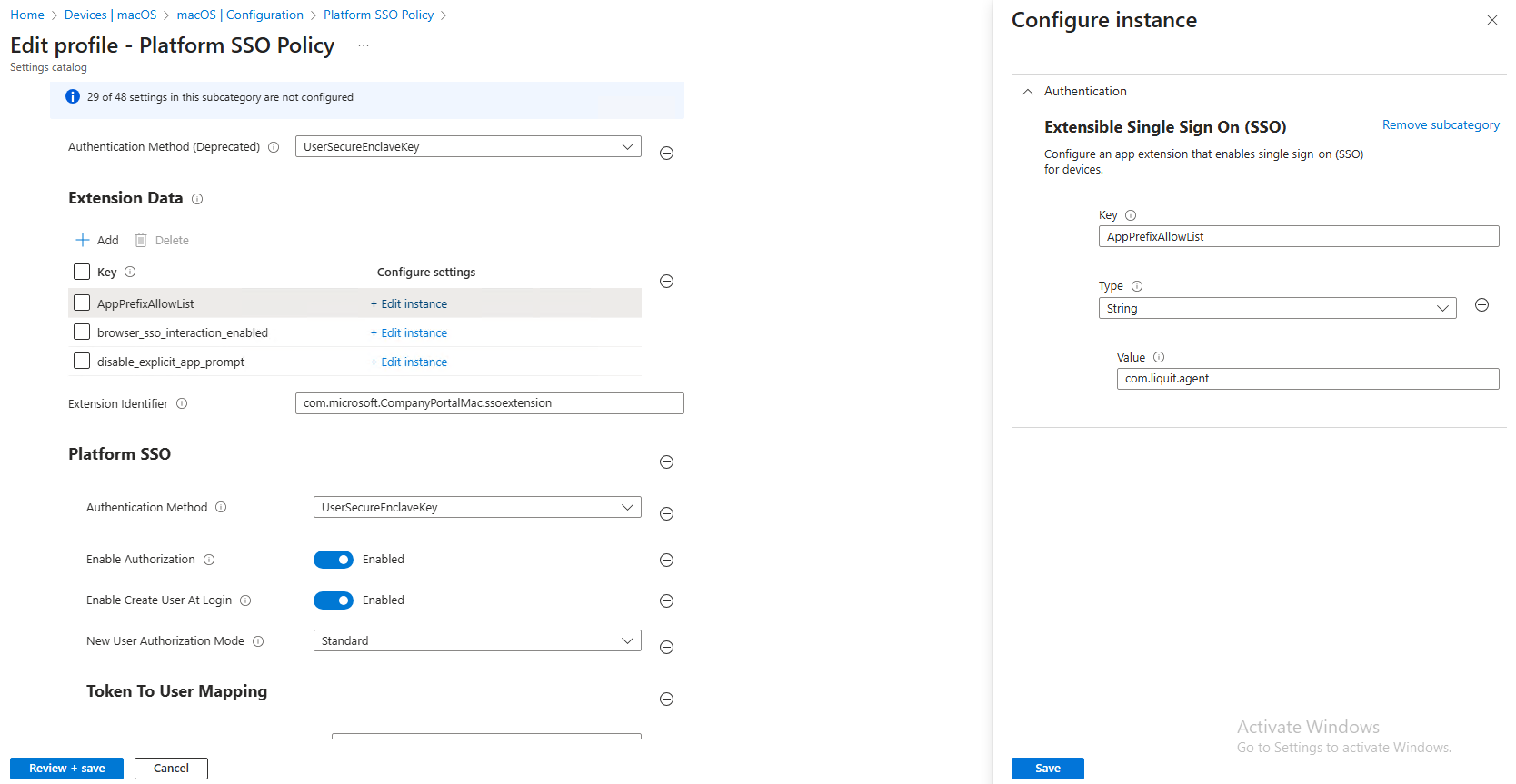
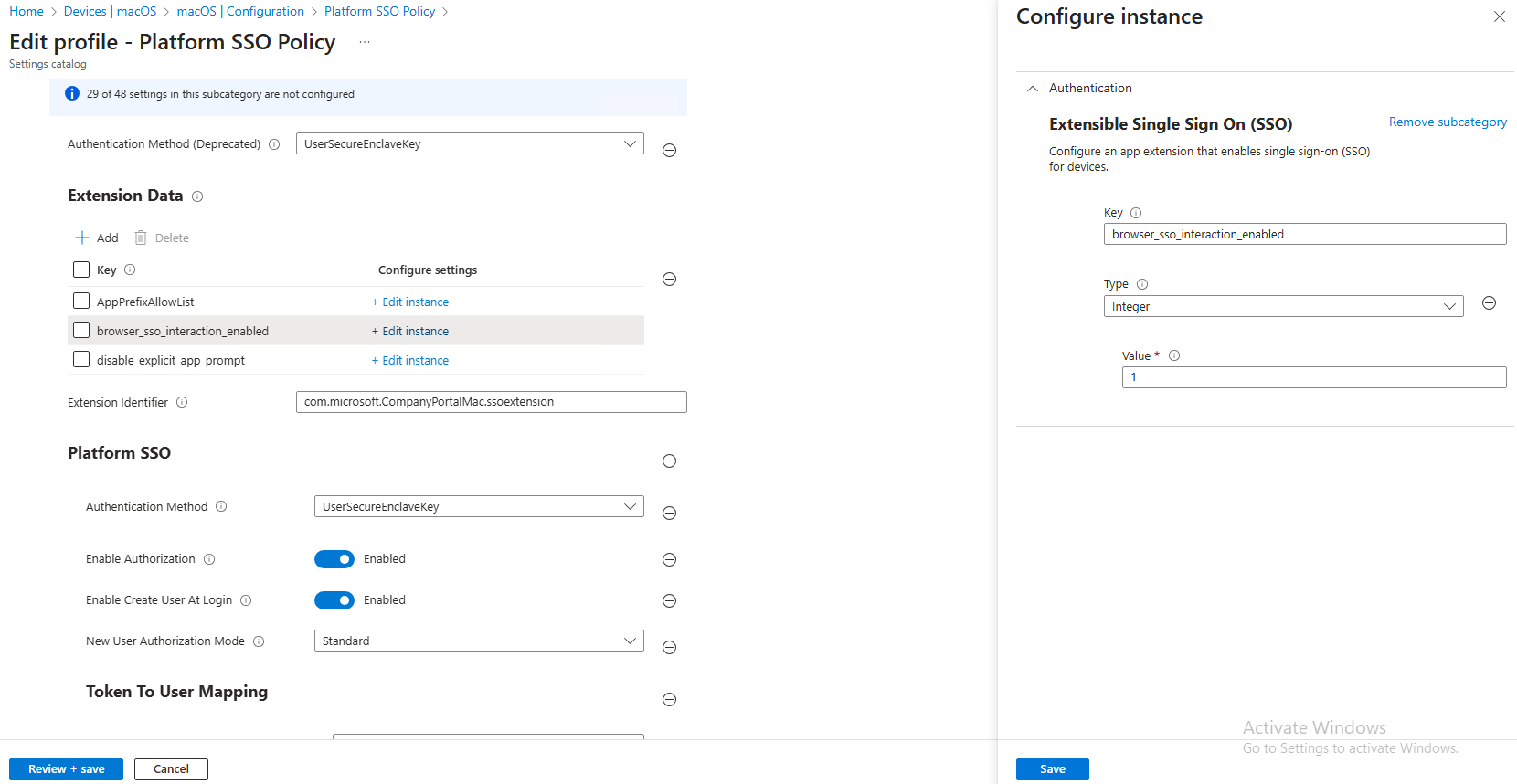
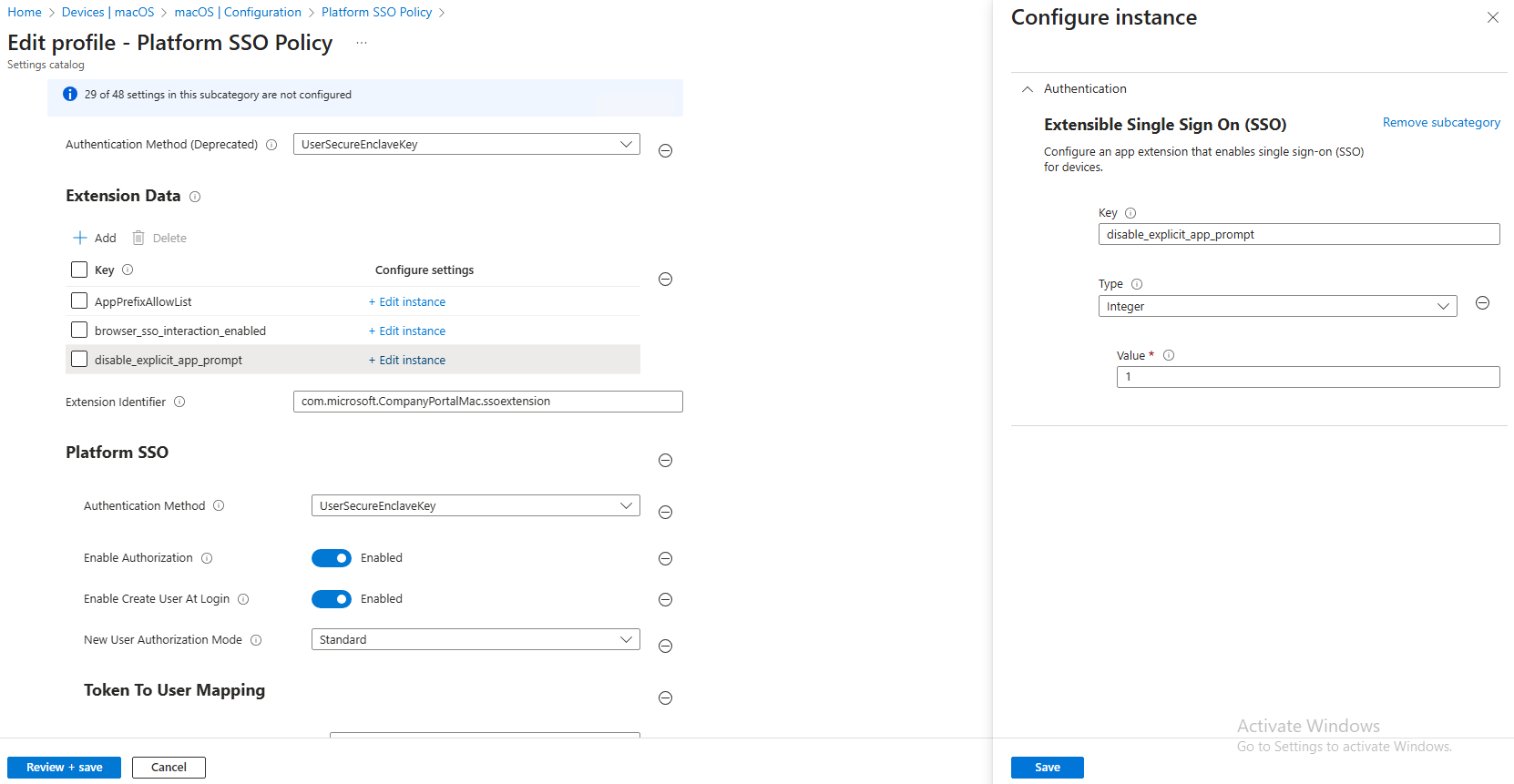
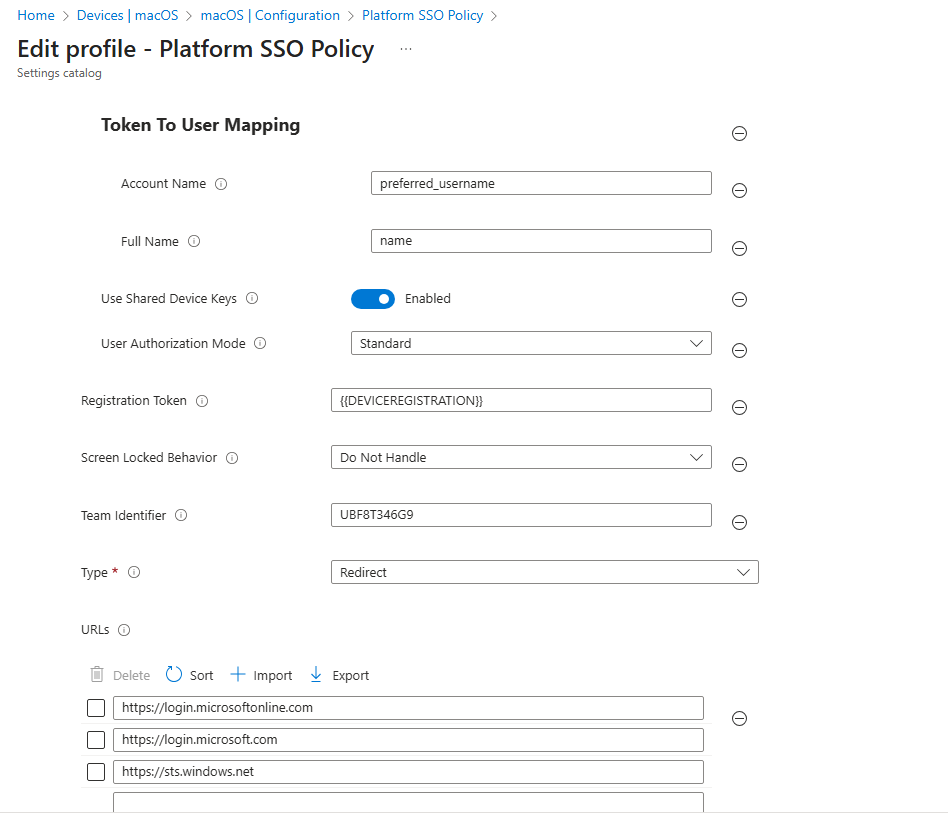
Follow Microsoft’s guide to create a Platform SSO policy in Intune.
Then apply the following Application Workspace – specific settings:
Reboot
The device requires a reboot after the initial configuration. Until the deployment becomes inactive, the Application Workspace Agent service is disabled, and the Application Workspace Launcher is not available.