Register an application in Azure Portal
- Log in to Azure Portal.
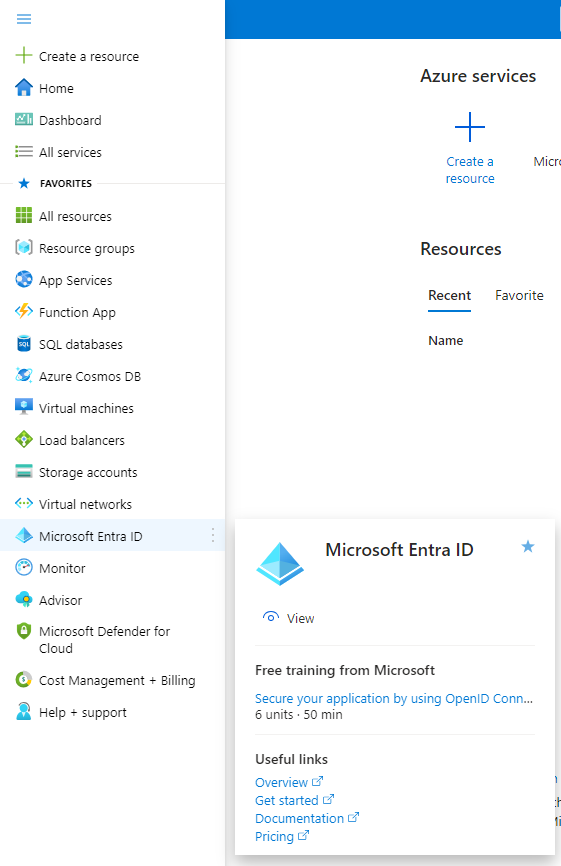
- In the Azure Portal menu, navigate to Microsoft Entra ID.
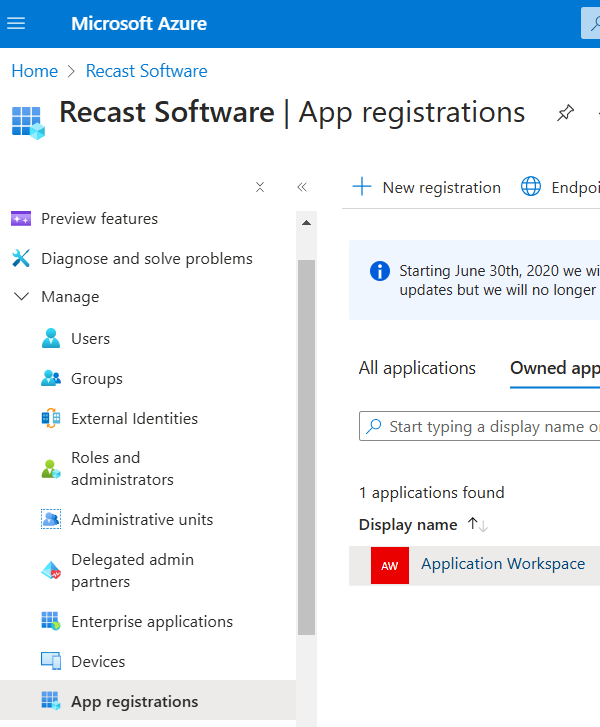
- In the left pane, navigate to Manage > App registrations.
-
Click on + New registration on the top toolbar.
-
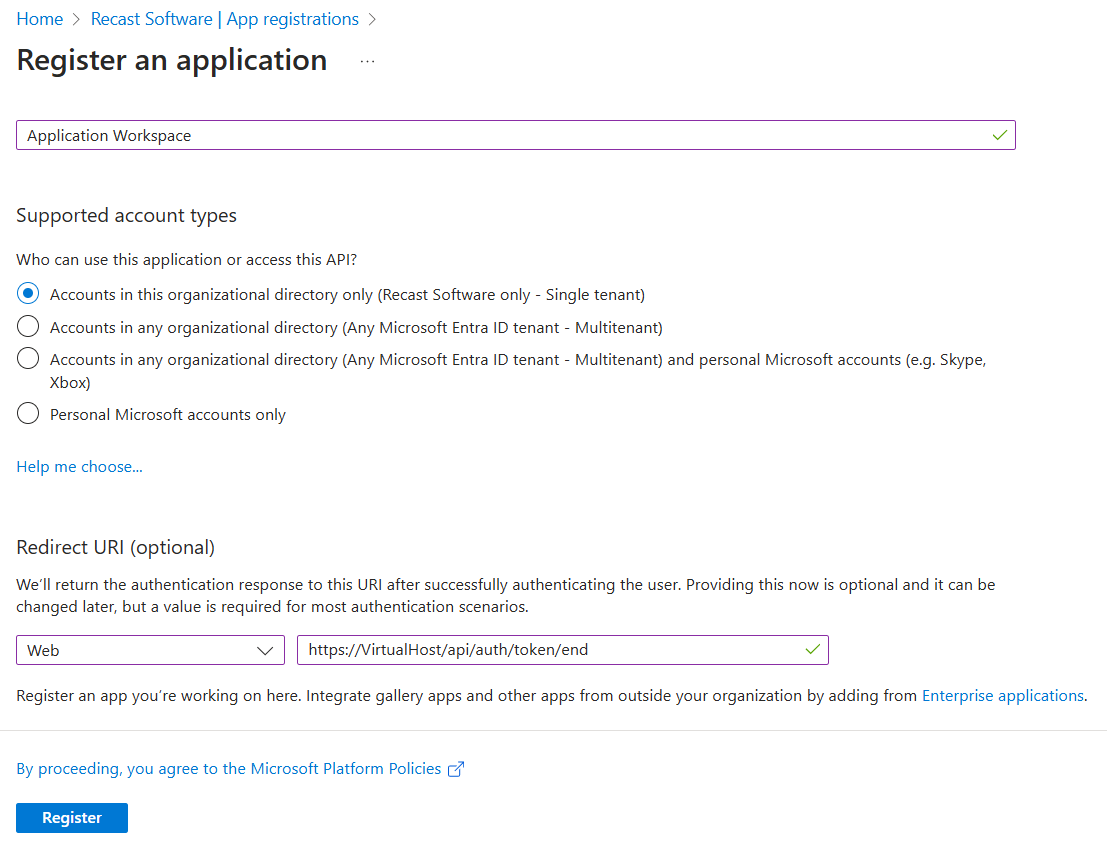
In the Register an application window that opens, configure the following:
- In the Supported account types section select Accounts in this organizational directory only (tenant only - Single tenant). For more information about the supported account types, see Microsoft documentation.
- In the Redirect URI (optional) section select Web and in the value field insert the FQDN of the Application Workspace zone you want to add, with the
/api/auth/token/endsuffix.
Example:
https://< Virtual Host >/api/auth/token/end
-
Click on Register on the bottom left, to complete the initial app registration.
-
You need to generate a client secret that facilitates communication between Application Workspace and Microsoft Entra ID (Azure AD). In the newly created app registration, in the left pane, navigate to Manage > Certificates & secrets > Client secrets > New client secret.
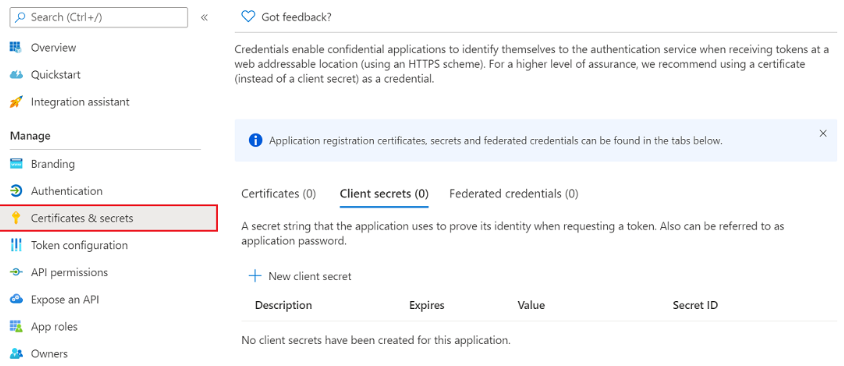
- Add a description and an expiration date for your client secret and then click Add. Note down your client secret after you create it because there is no way of retrieving the value after you leave this screen.
- You need to add permissions to your app registration. In the left pane, navigate to Manage > API permissions and add the following permissions:
- Directory.Read.All - Allows Application Workspace to read data in your organization's directory, such as users, groups and apps. This is an Application type permission so it requires Admin Consent.
- User.Read - Allows users to sign in to Application Workspace. This is a Delegated type permission.
- (Optional) User.Read.All - Allows Application Workspace to read the user data and retrieve photos from Microsoft Entra ID (Azure AD). This is an Application type permission so it requires Admin Consent.
- (Optional) GroupMember.ReadWrite.All - Allows Application Workspace to modify group memberships. This is an Application type permission so it requires Admin Consent.
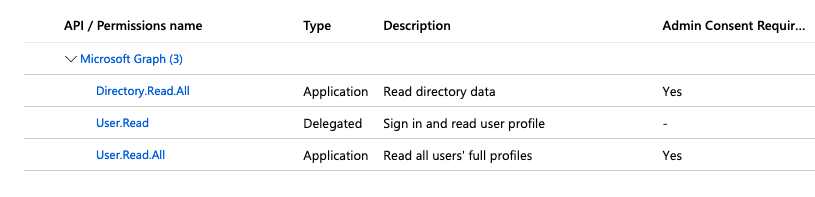
For more information about permissions, see Microsoft documentation.
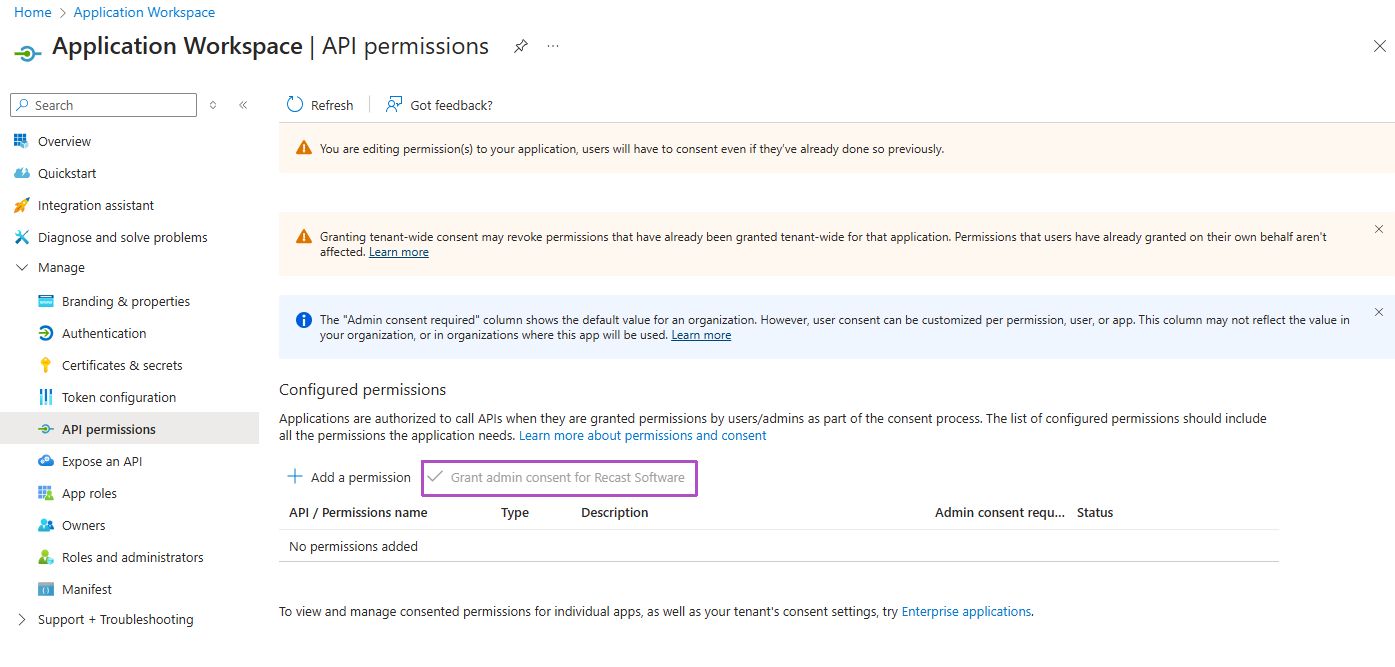
- Click on the Grant admin consent for {your tenant}. It can take up to an hour before these settings take effect in Microsoft Entra ID (Azure AD).
Creating the identity source in Application Workspace
- Navigate to Manage > Authentication > Identity Sources
- Click
 Create in the table toolbar. The Create identity source dialog box opens.
 - In the Type screen, select Microsoft Entra ID (Azure AD). Click Next.
- In the Overview screen:
- For the Name field, we recommend you use only letters without spaces. If you plan to use Kerberos/NTLM, use the NETBIOS name.
- If the Hidden checkbox is selected, this identity source will not be shown as an option on the login page. Even hidden, you can configure it in the Agent file or using URL parameters as described in URL Parameters.
- After you finish inserting all necessary information, click Next.
- For an overview of the Microsoft Entra ID (Azure AD) identity source settings, see Microsoft Entra ID (Azure AD).