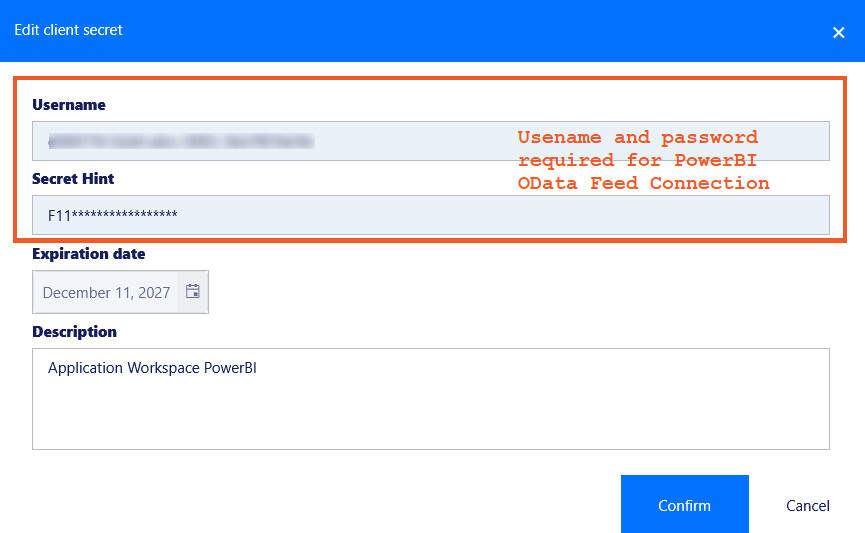
Here you can automatically generate the username and password, which you can later use to configure the OData Feed Connection for the Reporting Power BI template.
The username and password are automatically generated by the system and cannot be changed.
Generating the password
- Click
 in the table toolbar.
 - In the Create client secret dialog box:
- Write a description.
- Specify an expiration date. By default, the field is prefilled with a date two years from today. If left blank, the expiration will be set to Never.
- Click Finish in the Summary screen, to generate the client secret.
- A confirmation dialog, Your client secret has been created, will appear. This contains the password for the Power BI OData Feed Connection.
Once your client secret is generated, make sure you copy and store it safely, as this is displayed only once and cannot be accessed again.
Finding the username
The username becomes available after the client secret is created, so you need to open the newly created client secret to view the username.
Note that the username is a static value, unique per zone.
Client secrets list
This list displays all client secrets currently available in the Application Workspace System.
Selecting multiple rows from the table
- To select multiple adjacent rows, click on the first row, then hold down the Shift key and click on the last row in the range; all rows between will be selected.
- To select multiple non-adjacent rows, hold down the Ctrl key (or "Command" on Mac) and click on each row you want to select individually.
- To select multiple adjacent rows using the mouse only, click and hold the left mouse button on the first row, then drag the cursor up or down across the rows to highlight the desired ones.
- Selecting rows using only the keyboard is not possible.
Table toolbar
To create a new client secret, click on the Create button; to view the details of a client secret or edit it, double-click its entry or select the client secret and click the  Edit button.
 Views gives you control on how the table is displayed.
The default view contains all your client secrets in alphabetic ascending order, and only some columns: Secret Hint, Description, Expiration date and Expired.
You can create your own personalized view of the table by filtering the client secrets or adding/deleting columns and clicking Save as in the drop-down menu of  Views.